Download the program from your account, unpack all files from the archive into one folder on your drive or desktop, and run the EXE file.
Log in using the login and password from your account (you can create them on the website or in the program). Select a game, open the program settings, and set the sensitivity to match your in-game settings.
Enable the desired weapon and press F2 (default setting).
You can launch the program either before or after starting the game.
In the game settings, enable Borderless Window mode. This is optional, but without it the program overlay will not be visible, which makes gameplay less convenient.
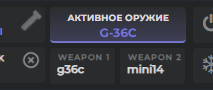
Settings windowsAfter selecting a game from the menu, the settings window will open and an overlay will appear in the corner of the screen (you can drag it; it displays: active weapon, selected scope, assigned weapon keys, etc.).
In the settings window, assign convenient keys for switching to the desired gun. Information about assigned keys will be shown in the overlay.
For correct operation of weapon and attachment auto-detection, set the same screen resolution in the game, the program, and Windows.
HotkeysON / OFF — F2 (Activates the program; once a weapon is selected, anti-recoil will activate on LMB press)
Switch scope — Up and Down arrow keys.
Switch muzzle attachment — Left and Right arrow keys.
Switch grip — Page Down and Page Up.
Reset active weapon — Right Ctrl
Freeze overlay — Locks the overlay on screen so it cannot be accidentally dragged with the mouse during gameplay; it turns on together with the macro on the F2 key
RUST SettingsYou must run the program as administrator! Otherwise it will not work! Always launch it before starting the game.
When selecting a game in the macro, it will ask you to choose a mouse control method. If you don't have a hardware board like makcu, choose Driver.
You need to set the field of view, overall mouse sensitivity, and ADS mouse sensitivity to match your in-game values.
Option 1: Click the "Auto Setup" button in the program. It will load data from the game config file and set all parameters automatically. The button is in the macro settings (top-left corner of the interface).
Option 2 (manual setup): You can find the base sensitivity with the command input.sensitivity. Type it into the game console (opened with F1) — you will see the current sensitivity value. Transfer this value to the program settings.

Next, set the ADS sensitivity value. Rust console command: input.ads_sensitivity.

You also need to set your in-game FOV. Console command: graphics.fov.

Scopes and weapon modules are switched with keyboard arrows (← → for modules, ↑ ↓ for scopes). The active scope and module are shown in the overlay. Automatic scope and module detection is also available, triggered by pressing the inventory key (Tab).
For correct operation of weapon and scope/module auto-detection:
Auto-detection works optimally with the following aspect ratios: 16:9, 16:10, 4:3, 5:4, 21:9
Select your screen resolution in the program settings. The resolution must be the same in the program, the game, and on the Windows desktop.
The system detects weapons with skins, but some skins may not be recognized correctly.
Weapon recognition is triggered by pressing one of: "1", "2", "3", "4", "5", "6" — pressing 1 detects the weapon in slot 1, pressing 2 detects slot 2, and so on. Scope and module detection is triggered by pressing the inventory key.
Once you press the key, the program will detect the weapon and play a sound to confirm the macro has been updated!
Apex Legends SettingsYou must run the program as administrator! Otherwise it will not work! Always launch it before starting the game.
When selecting a game in the macro, it will ask you to choose a mouse control method. If you don't have a hardware board like makcu, choose Driver.
You need to set the overall mouse sensitivity and ADS sensitivity to match your in-game values.
Option 1 (auto setup): Click the "Auto Setup" button in the program. It will load parameters from the game config file. The button is in the macro settings (top-left corner of the interface).
Option 2 (manual setup): Set the same sensitivity values in the program as in the game. First slider: main sensitivity (Settings → Keyboard → Sensitivity). Second slider: ADS sensitivity (Settings → Keyboard → Mouse Sensitivity while ADS).
Attachments are switched using the ← → arrow keys. The active scope and module are shown in the overlay. Automatic module detection is also available, triggered together with weapon detection.
Weapon and module recognition is triggered by pressing one of: "1", "2", "E". Module detection fires together with weapon detection.
Once you press the key, the program will detect the weapon and play a sound to confirm the macro has been updated!
CS2 SettingsDoes not work on Faceit.
You need to set both the overall mouse sensitivity and ADS sensitivity to match your in-game values.
Set the mouse sensitivity in the program to match the game at: Settings > Keyboard & Mouse > Mouse Sensitivity.
Weapon recognition is triggered by pressing: "1", "2".
Once you press the key, the program will detect the weapon and play a sound to confirm the macro has been updated!
Fastzoom: Fire button: Alt. Fastzoom is designed for AWP and SSG. It quickly zooms, fires, and presses 'q' twice.
Delay: Delay between zoom and shot. The greater the delay, the more accurate the shot.
Crosshair: The 'Crosshair' checkbox activates a dot in the center of the screen for aiming without zoom. Works only in windowed game mode.
More on the trigger: When you hold the trigger button, the program collects colors around the crosshair center and starts monitoring for significant color changes. As soon as the colors change, a shot is fired. After the shot, you need to hold the trigger button again — it collects colors and starts comparing again as long as the button is held, until the first shot. Example: aim at a doorway and hold the trigger; if the colors at the center of the screen are uniform (e.g. a plain wall), you can move the crosshair slightly — a shot will only fire on a significant color change.
PUBG SettingsDoes not work on Faceit.
Set the mouse sensitivity in the program to match the game. Sensitivity must be set the same in all fields as shown in the screenshot below. For example, if your in-game sensitivity is 40, set 40 in the program settings as well.

Scopes and attachments are switched by pressing (↓ ↑ for scopes), (← → for muzzle attachments), (PgUp PgDn for grips). The active scope and attachment are shown in the overlay.
Automatic detection of scopes and all modules is also available, triggered when you open the inventory (Tab key by default).
Weapon and module recognition is triggered by pressing the inventory key (Tab by default). After pressing, the program detects both weapons and all their attachments simultaneously, showing the detected weapons in the overlay in weapon slots 1 and 2.

To set a previously auto-detected weapon as the active weapon, press "1" or "2" on the keyboard.
Once you press the key, the program will detect the weapon, scopes, modules and play a sound to confirm the macro has been updated!
R6 Siege SettingsYou need to set the overall mouse sensitivity to match your in-game value.
For ADS sensitivity, all sliders must be set to 50.

The main X and Y sensitivity in the program must equal these two sliders in the game:

Scopes and attachments are switched by pressing (↓ ↑ for scopes), (← → for muzzle attachments), (PgUp PgDn for grips). The active scope and attachment are shown in the overlay.
Weapon recognition is triggered by pressing: "1", "2".
Once you press the key, the program will detect the weapon and play a sound to confirm the macro has been updated!
BF 6 SettingsYou must run the program as administrator. Otherwise macros may not work correctly.
Set the overall mouse sensitivity in the program to the same values as in the game.
All other in-game settings should be left at default values.
Weapon recognition is triggered by pressing one of the keys configured in the program settings (by default usually "1" and "2").
After successful detection the program will play a sound and activate the correct recoil pattern.
ARC RAIDERS SettingsYou must run the program as administrator to avoid errors.
Set the overall mouse sensitivity in the program to the same values as in the game. Horizontal and vertical sensitivity are set separately.
For auto-detection and switching to work:
The script automatically detects both weapons when you open the inventory. As soon as the inventory opens, the macro reads the weapons and displays them in the overlay as slot 1 and slot 2.
Switching between already detected weapons happens instantly with the "1" and "2" keys on the keyboard.
After successful detection the program will play a sound and activate the correct recoil pattern.
BF 2042 SettingsSet the mouse sensitivity in the program to match the game at: "Settings" -> "Mouse/Keyboard" -> "On Foot" -> "Soldier Aim Sensitivity".
All other in-game settings should be left at default values.
Scopes are switched by pressing ↑ ↓. The active scope is shown in the overlay.
For weapon auto-detection to work:
In "Settings" -> "Accessibility" -> "General" -> "UI Motion" set it to "OFF".
Select your screen resolution in the program settings. The resolution must be the same in the program settings, the game, and the Windows desktop.
Recognition is triggered by pressing: "1", "2".
Once you press the key, the program will detect the weapon and play a sound to confirm the macro has been updated!
Warzone | BO7 SettingsYou must run the program as administrator!
You need to set the overall mouse sensitivity to match your in-game value.
Set the same sensitivity values in the program as in the game.
For weapon and module auto-detection to work:
Recognition is triggered by pressing one of: "1", "2", "F".
Once you press the key, the program will detect the weapon and play a sound to confirm the macro has been updated!
WARDOGS SettingsYou must run the program as administrator!
You need to set the overall mouse sensitivity to match your in-game value.
Set the same sensitivity values in the program as in the game.
For weapon auto-detection to work:
Recognition is triggered by pressing one of the keys "1" or "2", and by pressing the right mouse button while aiming.
Once you press the key, the program will detect the weapon and play a sound to confirm the macro has been updated!
Recoil strength depends on the character's stance and the weapon's magazine size, so watch the stance shown in the overlay and set the correct scope and your magazine capacity with the keyboard arrows. (↓ ↑ — scopes), (← → — magazine capacity)
Valorant SettingsYou must run the program as administrator! Otherwise it will not work! Always launch it before starting the game.
When selecting a game in the macro, it will ask you to choose a mouse control method. If you don't have a hardware board like makcu, choose Driver.
You need to set the overall mouse sensitivity to match your in-game value.
Set the same sensitivity values in the program as in the game.
For weapon and module auto-detection to work:
Recognition is triggered by pressing one of: "1", "2", "3".
Once you press the key, the program will detect the weapon and play a sound to confirm the macro has been updated!